Convert WPS to PDF.
A .wps file is a Microsoft Works document, from software Microsoft discontinued in 2009. Modern Word often won't touch it. Convert it to a PDF you can read, print and keep.
Inside The Conversion
See The Input. Inspect The Result.
A real WPS to PDF conversion using a sample file. Compare the files below, then use the converter above with your own file.
Recorded Sample
Converted on the server in this run.
harbour-lane-price-list.wps
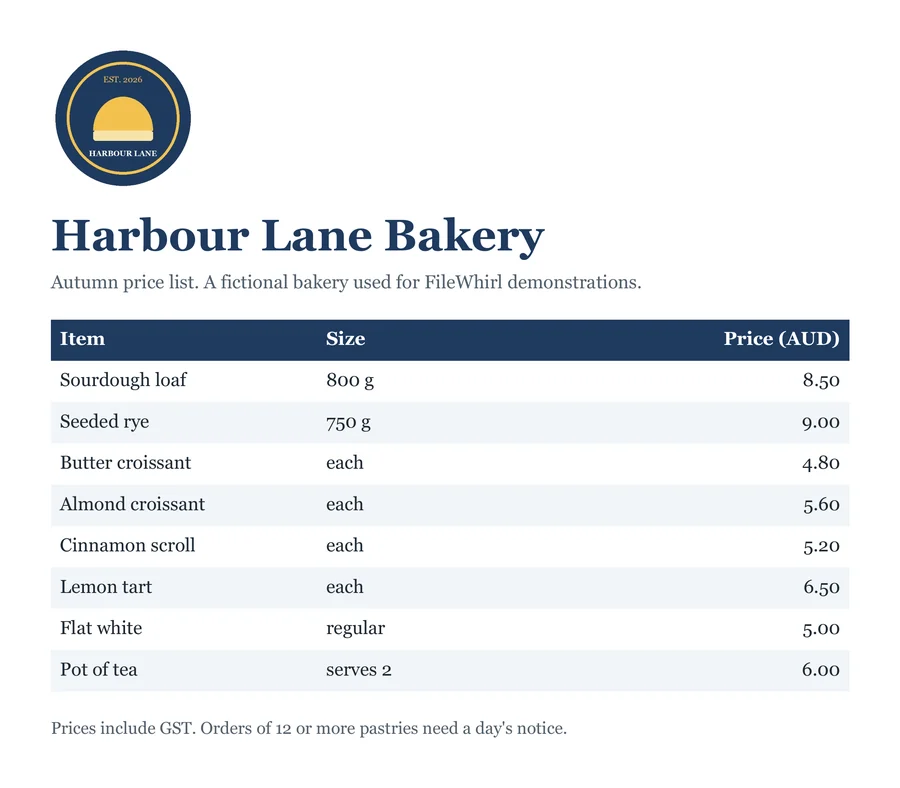
harbour-lane-price-list.pdf
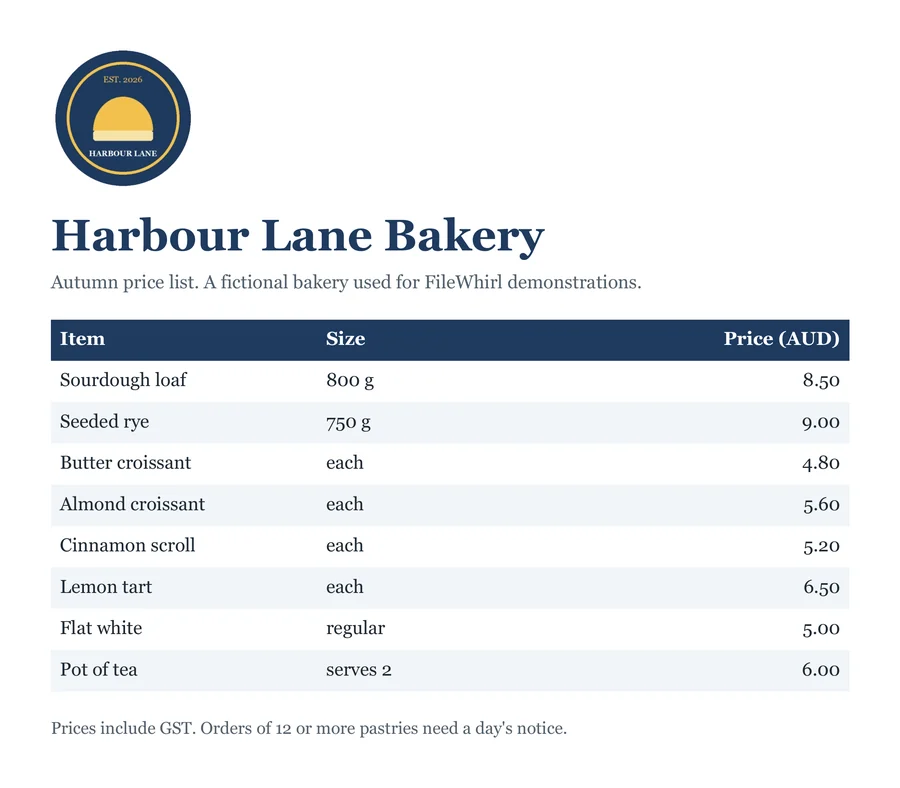
Previews show the sample files from this recorded conversion. Choose Input or Result to focus on one file.
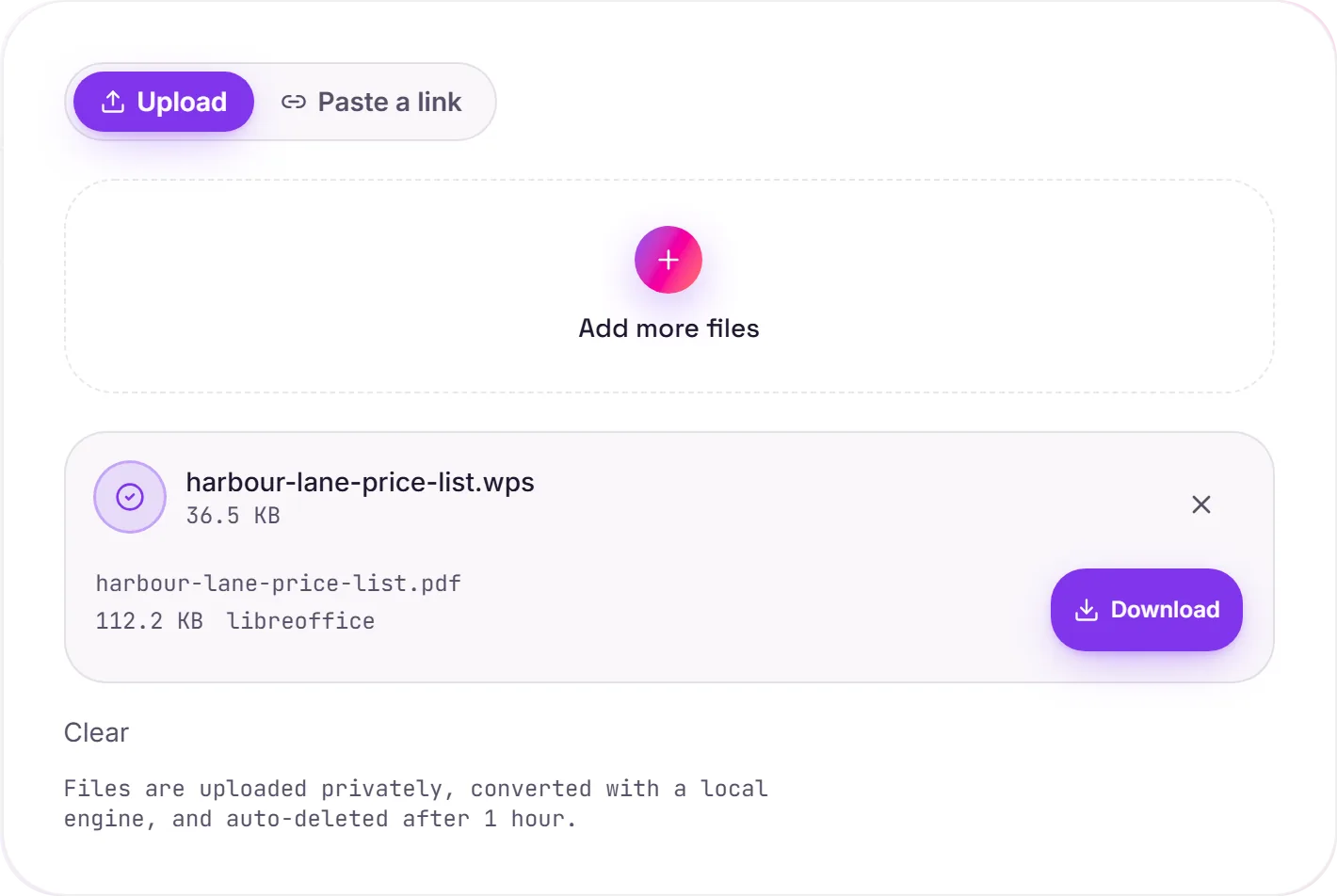
View The Original Run Capture
A screenshot of the completed run, preserved in its original theme. The comparison above adapts to your current theme.
A document from retired software
Microsoft Works was the budget productivity suite bundled with a lot of home PCs in the 1990s and 2000s. It saved word-processor files as .wps, and when Works was discontinued in 2009, those files were left behind. Open one in modern Word and you'll often get an error or a wall of garbled characters.
How we read it
LibreOffice kept the Microsoft Works import filter alive, so it can still parse the old format faithfully. We render it straight to PDF, preserving the text and layout, so the content is safe in a format that isn't going anywhere.
Need to edit it?
Convert to DOCX instead and you can pick up editing in Word, Google Docs or Pages.
How it works
- 01
Upload your WPS
Drop a Microsoft Works .wps file, or click to browse. Private by default.
- 02
Convert with LibreOffice
LibreOffice reads the legacy Works format and renders it to PDF, no paid API in the loop.
- 03
Download
Grab your PDF, finally readable on any device.
Reads the discontinued Microsoft Works format
Preserves text and layout into a clean PDF
Readable on any device, no Works or Word needed
Private uploads, auto-deleted after 1 hour
Free and open-source engine, no watermark
WPS to PDF
Your WPS is rendered to a fixed-layout PDF with fonts embedded, so it looks the same on any device and can't be accidentally reflowed. Unusual fonts may shift a little, worth a glance if exact layout matters.
Common questions
Why won't Word open my WPS file?+
Microsoft Works was a separate, cheaper product from Office, with its own format. Microsoft retired it in 2009 and modern Word dropped the import converter, so .wps files are increasingly stranded. LibreOffice still ships the reader, which is what we use.
Is it free?+
Yes. Convert WPS to PDF free. No signup and no watermark. Free covers 10 server conversions a day, up to 100 MB a file. Pro removes the daily limit and raises the file limit to 2 GB.
Is my file private?+
Uploads go to a private bucket, are converted, and auto-delete after 1 hour. Files never touch a third-party converter.
Can I get an editable document instead?+
Yes. Convert to DOCX if you need to edit the text in Word, Google Docs or Pages rather than just read it.